# Help Ticketing and Workflow
# How To Create A Ticket
In order to access our ticketing system, you have two options:
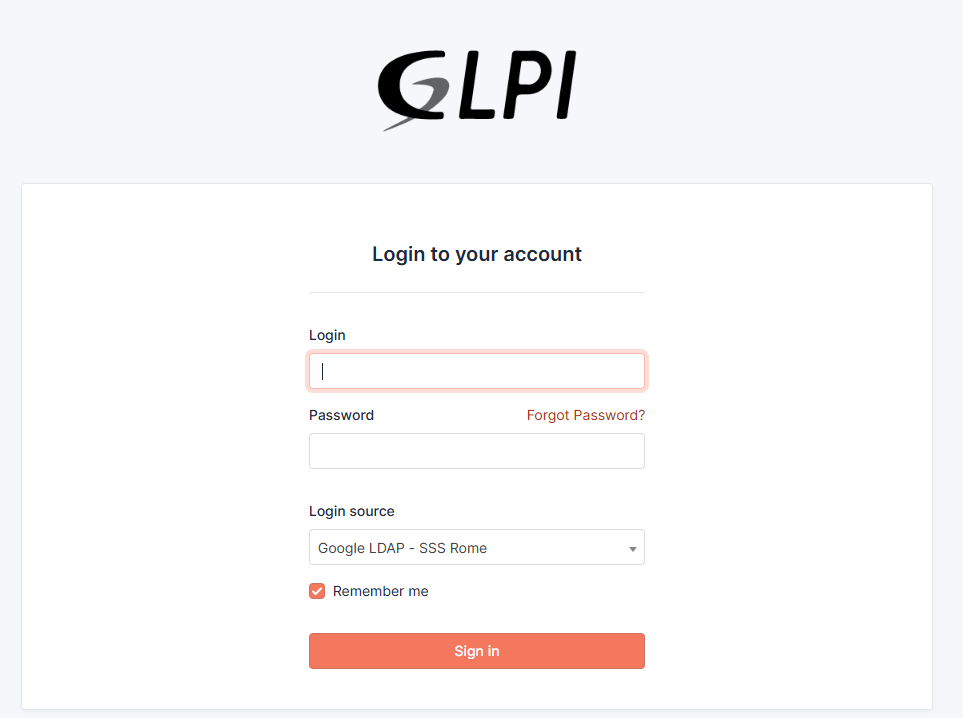
**Option 1: Via Web Browser** You may go to: [https://support.sssrome.it](https://support.sssrome.it) When you go to the address, you should be greeted with the screenshot below
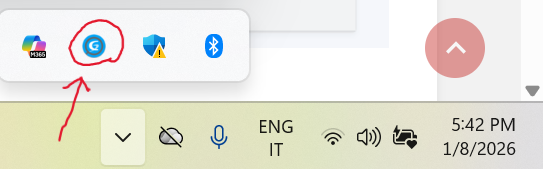
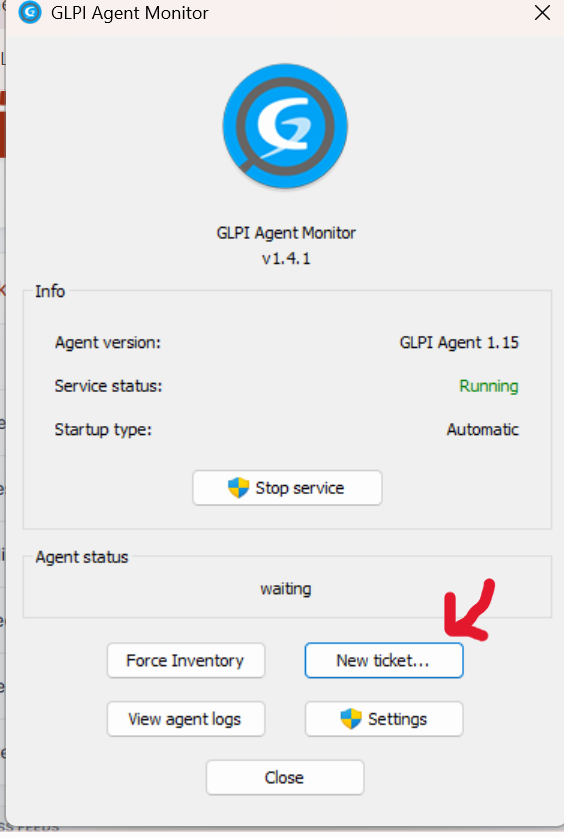
**Option 2: Via Windows Taskbar (Quicker)** You can also access it directly from the bottom bar of your computer, without typing the address.
1. Click the **small arrow (^)** in the bottom-right corner of the screen (system tray).
2. Look for the **GLPI icon** and click on it.
**Note:** If you do not see the GLPI icon in the menu, please contact the IT Department at **support@sssrome.it** so we can verify your installation.
[](https://docs.sssrome.it/uploads/images/gallery/2026-01/screenshot-2026-01-08-174216.png)
\---------------------------------------------------------------------------------------------------------------------------------------------
[](https://docs.sssrome.it/uploads/images/gallery/2026-01/screenshot-2026-01-08-174200.png)
\-----------------------------------------------------------------------------------------------------------------------------
**How to Log In:**
On the login screen, please enter your credentials as follows:
- **Username:** Your email address **without** `@sssrome.it` (e.g., just `alessio.ronca`).
- **Password:** The same password you use for your Google/Email account.
- **Login Source:** Please ensure the dropdown menu is set to **GOOGLE LDAP - SSSROME** (this is usually selected by default).
Click **"Sign in"**.
[](https://docs.sssrome.it/uploads/images/gallery/2025-05/image.png)
\------------------------------------------------------------------------------------------------------------------------------------------------------
[](https://docs.sssrome.it/uploads/images/gallery/2025-05/Z7Gimage.png)
**Creating a New Ticket:**
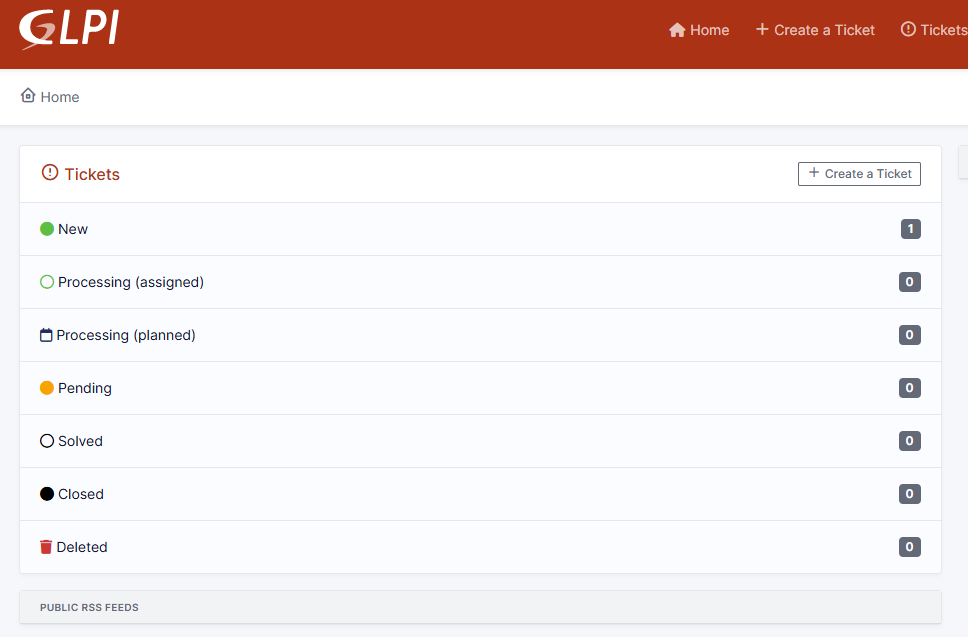
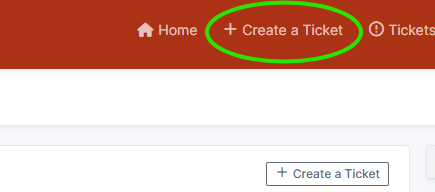
To submit a new request, simply click on **Create a ticket** located in the top menu bar.
[](https://docs.sssrome.it/uploads/images/gallery/2025-05/B0Simage.png)
**Filling out the details:**
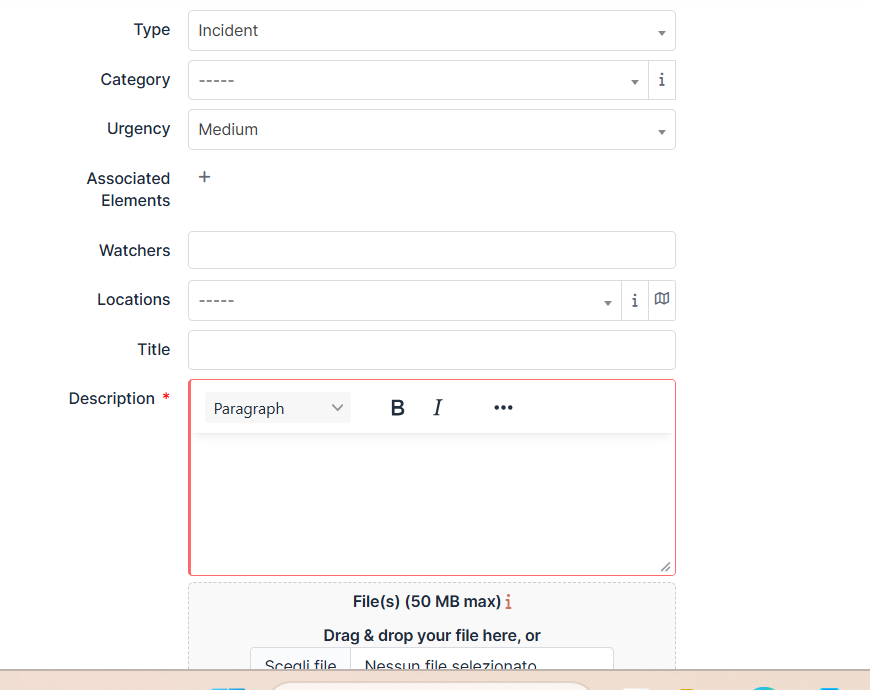
On this page, please complete the following fields:
- **Category** and **Location** (Select from the menu).
- **Room** number.
- **Description** of the issue.
**Adding Watchers (Optional):** In the **Watchers** field, you can add any colleagues you wish to keep updated on this ticket (e.g., a co-teacher or supervisor).
- **Note:** Ensure there is a **bell icon** 🔔 next to the Watcher's name. This confirms that the system will send them an immediate email notification.
[](https://docs.sssrome.it/uploads/images/gallery/2026-01/screenshot-2026-01-21-144116.png)
**Submitting the Request:**
Once you have filled in the details, click on the **Submit Message** button at the bottom of the page.
**What happens next?** You will receive an automatic email confirming that your ticket has been created. A member of the IT Department will review your request and get in touch with you shortly.