
Help Ticketing and Workflow
How To Create A Ticket
In order to access our ticketing systemsystem, you have two options:
Option 1: Via Web Browser You may go toto: https://support.sssrome.it.
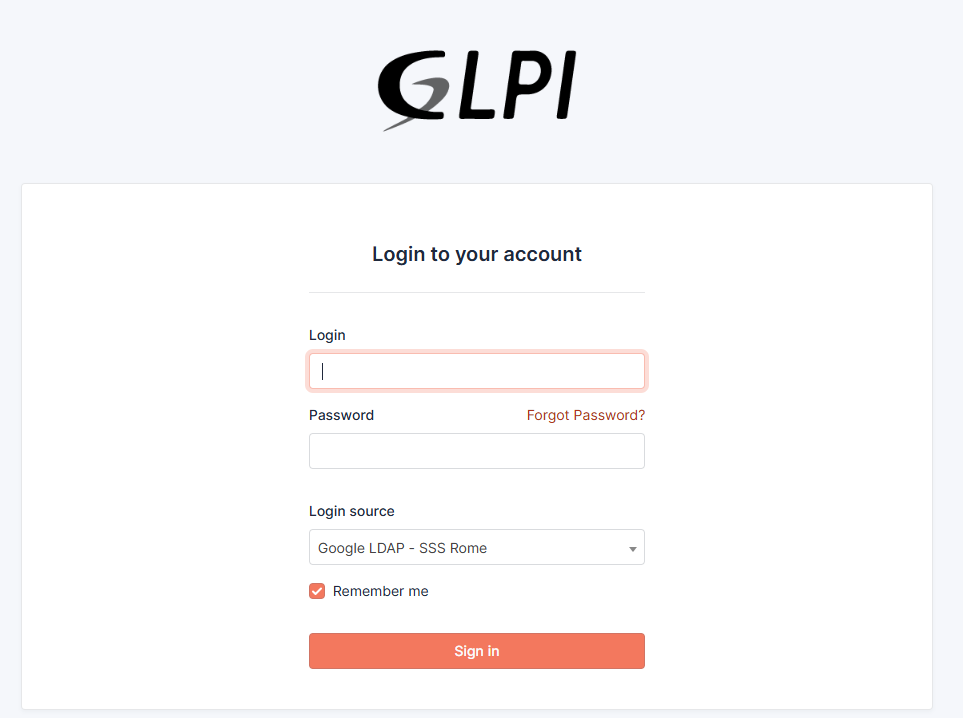
When you go to the addressaddress, you should be greeted with thisthe screen:screenshot below
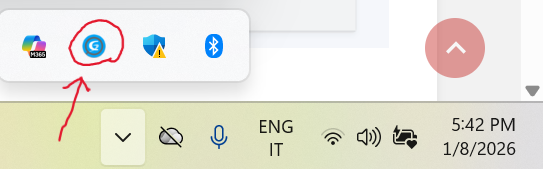
Option 2: Via Windows Taskbar (Quicker) You can also access it directly from the bottom bar of your computer, without typing the address.
-
Click the small arrow (^) in the bottom-right corner of the screen (system tray).
-
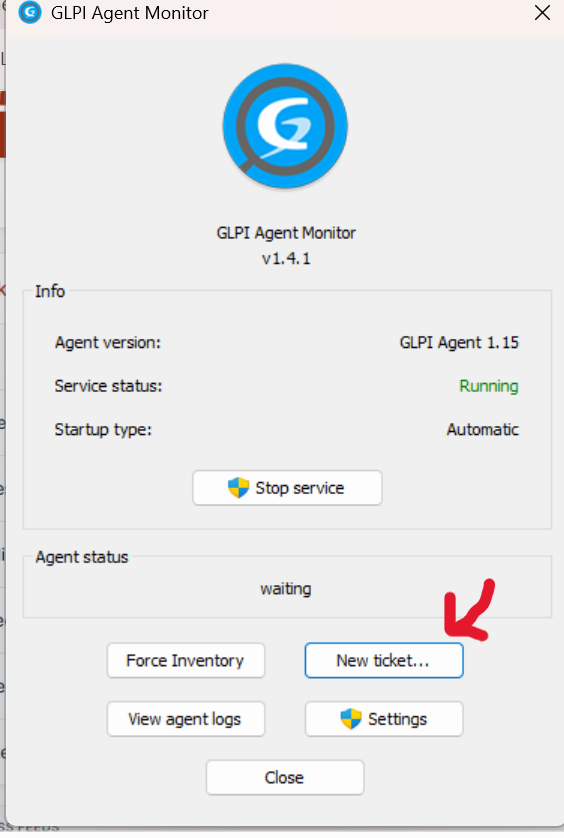
Look for the GLPI icon and click on it.
Note: If you do not see the GLPI icon in the menu, please contact the IT Department at support@sssrome.it so we can verify your installation.
---------------------------------------------------------------------------------------------------------------------------------------------
-----------------------------------------------------------------------------------------------------------------------------
OnCertamente! thisEcco screenil you'lltesto typeformattato in yourmodo pulito, schematico e facile da leggere ("user-friendly"). Ho diviso le informazioni in punti chiari per evitare confusione su username ande passwordpassword.
How onto "SignLog in".In:
TheOn Usernamethe islogin screen, please enter your credentials as follows:
-
Username: Your email address without
"@sssrome.it"itand(e.g.,thejustalessio.ronca). -
Password: The same password
isyoutheusesame asfor yourgoogleGoogle/Email account. -
NOTE:LoginMakeSource:surePleasethatensure theLogindropdownsourcemenu is set to"GOOGLE LDAP -SSSROME".SSSROMEIt's(thissetistousuallythatselected bydefault.default).
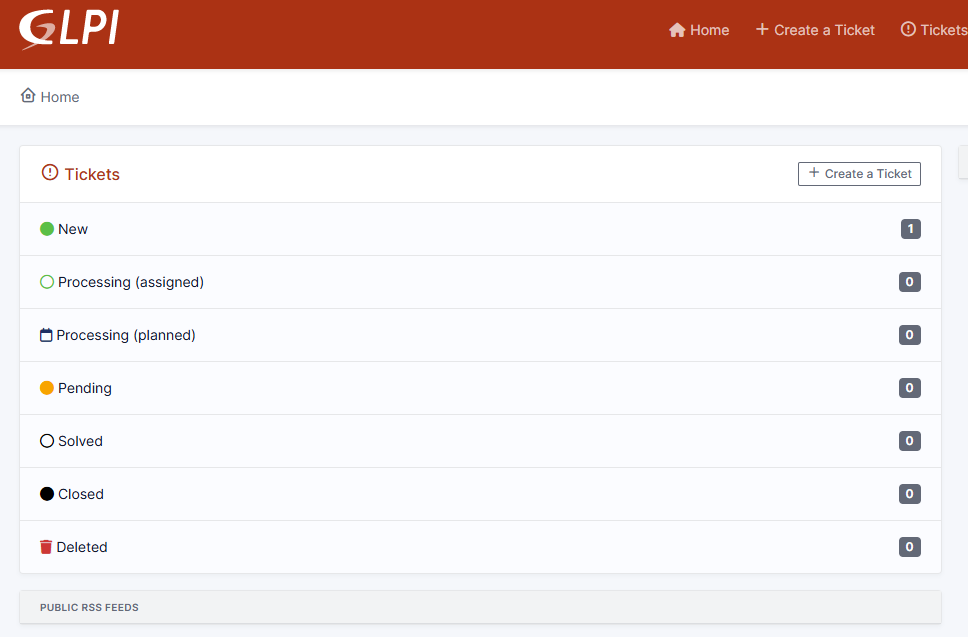
AfterClick that"Sign you'll see this home screen. From here you can view all of your tickets, past and present. in".
ClickCreating a New Ticket:
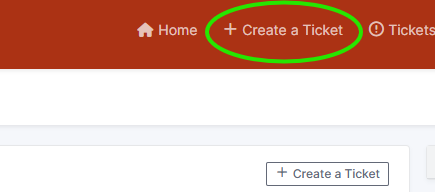
To submit a new request, simply click on "Create a ticket"ticket onlocated in the headertop tomenu submit your ticket.bar.
Filling out the details:
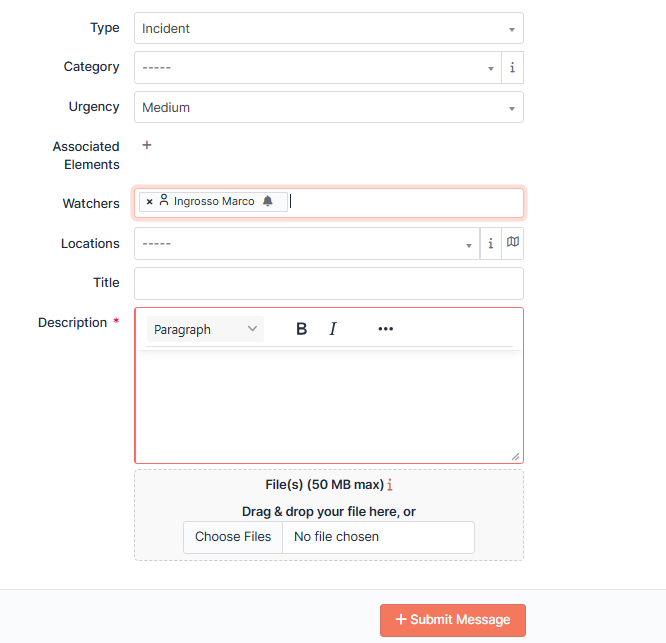
On this pagepage, please complete the following fields:
-
Category and Location (Select from the menu).
-
Room number.
-
Description of the issue.
Adding Watchers (Optional): In the Watchers field, you justcan need to select the Category, Location, and type in the Description and Room.
Under Watchers always enter Marco.Ingrosso andadd any other personcolleagues you wish to bekeep awareupdated ofon thethis ticket.ticket (e.g., a co-teacher or supervisor).
-
Note: Ensure there is a bell icon 🔔 next to the
WatchersWatcher'sname,name.asThisthisconfirms that the system willimmediatelysendathemnotificationanemail.immediate email notification.
AfterSubmitting fillingthe outRequest:
Once ticket,you have filled in the details, click on the Submit Message button at the bottom of the page.
Afterhappens younext?